

Ventrilo is a VOIP group communication software that is widely used by teams of people to communicate over the internet. It is popular with gamers who use it to talk to other players during games.
While there are a lot of hosting sites that allow you to buy a Ventrillo server, it actually quite easy to host one yourself. The only limitation is that a maximum of 8 users are allowed to connect simultaneously. One of the requirements for hosting / joining a server is the IP address. A static IP is needed to host the server. Most home connections have dynamic IP which may change when the router restarts. In this guide we will show you how to host a ventrilo server when you have a dynamic IP connection.
How To setup Ventrilo server with Dynamic IP connection
A solution to Dynamic IP
First we need a solution for the IP issue. We will use a service called No-IP that allows you to have domains that point to your curent IP. It uses a tiny program that sits on your computer and updates the site with your IP address. The site then points any requests it gets for your domain to the IP of your computer.
Create an account at No-IP, verify your account with the email you receive.
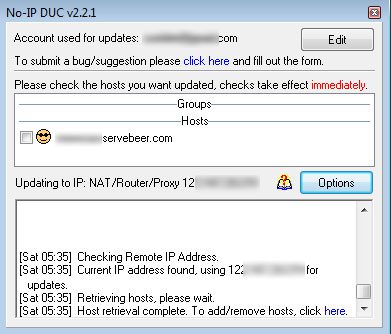
Download the No-IP client. Install it and login with your account information.
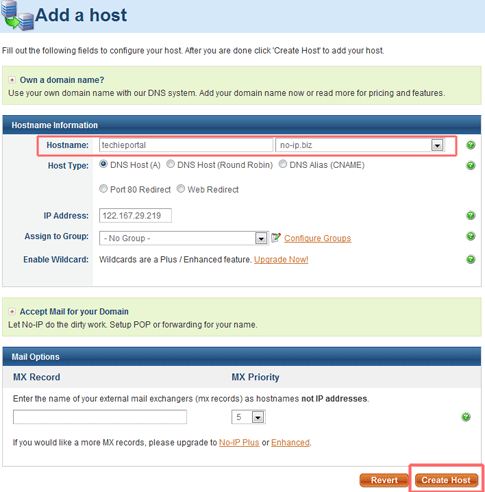
Login to your account at No-IP. Click on Add Host. Enter a Host name and choose from any of the No-IP free domains. Your IP address should be automatically populated. Click on create Host.
The above steps will allow you to be rid of the static IP problems. You should now be able to install Ventrilo without any hiccups. Those who do not know how may continue reading the guide.
Installing Ventrilo Server
Download Ventrilo Server and Client programs from Ventrilo’s Download page.
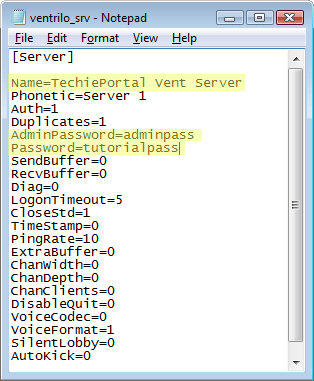
Install Ventrilo Server from the file you downloaded. Go to Start Menu on your computer and under VentSrv you will find an option “Edit INI File“. Clicking on it will bring up a notepad window. Change the Name, admin password and password fields. Then save the file and close it.
Again go to Start menu > VentSrv and run the Vent server. A command prompt window should come up this is your server, it must remain open for the server to work. You may install ventrilo as a Windows service so that it is automated and runs in the background. This can be done in the start menu folder under Service.
If you are using a router, you will need to portforward for port 3784. Port forwarding is beyond the scope of this article as it will vary depending on your browser. Just follow the instructions at portforward.com to open port 3784
Connecting to the Ventrilo Server
Install Ventrilo client that you downloaded. Hostname /IP will be the host you setup in No-IP (eg. techieportal.no-ip.com) and password will the the one you entered in the INI file. Enjoy chatting on your Ventilo server !
Hope this was helpful, please do leave a comment below if it helped you !




Could be very useful for setting up a webhost at home. Is it possible to do this with other types of servers?
By the way Alfred, I’d like to let you know of a little annoyance. I tried submitting a comment, but got the CAPTCHA wrong on the first attempt. The page reloaded and I had to re-type this comment all over again. I advise you to do something about this – someone who typed out a long comment could get really frustrated.
.-= ThePCGuild´s last blog ..A Perpetual Motion Machine? =-.
@ThePCGuild, If you are talking about the No-IP part, yes it will work with any other type of server you want to run as long as the program accepts a domain in the IP field.
I am sorry to hear about the RECAPTCHA problem, I will look for a solution to it. The reason I had it installed was due to the amount of spam this blog receives.
Again thanks for visiting and sharing your valuable comment.