
Phones have become the center of our lives, our friends & business contact numbers are needed when we least expect it. The hardest part is shifting from one phone to another. Incase you want to shift from Sony Ericsson phones to Windows Mobile or have a copy of your contact on your computer its a good idea to have them synced.
How to Sync Sony Ericsson Phone Contacts with Windows Contacts
First of all we will need the Sony Ericsson PC Suite in order to sync your phone with the computer. Get the PC Suite (Sony is using a new software called PC companion now, so download it from softpedia).
Now start the PC suite application and click on Contacts from the right menu. This will sync the contacts from your phone to the PC suite.
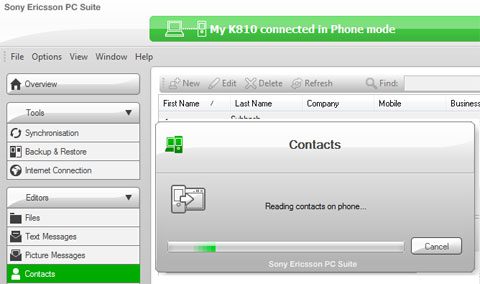
Now that the PC suite has been synced we can work out a way to sync it with Windows Contacts
Copy and paste the following in the Run box in Start menu, while replacing the username with your Windows login account name.
C:\Users\USERNAME-REPLACE\AppData\Local\Sony Ericsson\Sony Ericsson PC Suite\Sync\SyncML
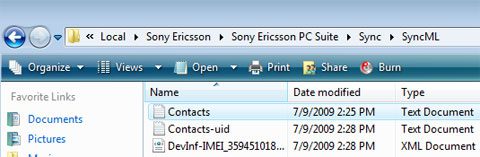
You should see the files shown above. Copy the contacts.txt file to your desktop or another location.
Rename the file to Contacts.vcf (you will see the icon change). Incase you can’t rename the extension, do it through the CMD prompt as shown.

Open Windows Contacts and click on the Import Button. Choose VCard format and open the file you saved. You Windows Contacts should now be updated with the phone contacts. You might have to click the OK button multiple times to import each contact.
You can also sync these contacts with your iPOD using iTunes.
Alternate Method to export contacts as a VCF file ( Thanks to Blaise Kal for the tip)
1. Open Sony Ericsson PC Suite
2. Make a backup of your phone which includes your contacts (this creates a .dbk file)
3. Change the extension from .dbk to .zip
4. In the zip file, there’s a file called contacts.vcf




cool blog
I swear this used to happened automatically. Since upgrading to PC Suite 6 and Win7, it didn’t work anymore. Thanks for this.
@Derek,
hmm I’ve never heard of PC Suite syncing with Windows Contacts ! I use PC Suite 6 and it never had that option. Were you on some beta version or something ?
When I used PC Suite 4+ Windows XP everything works fine….until I use PC Suite 6 + Windows 7. Thanks for this!
But, all my contact names are in Chinese and they are garbled after this. It looks like Windows 7 still use ANSI encoding and dont’ recognize UTF-8!
thank u very much
@Derek, That’s because Win7 doesn’t come with the applications “Windows Calendar” and “Windows Mail” anymore. Now you have to download Windows Live Mail and guess what – Sony Ericsson PC Suite 6.009 doesn’t support syncing with Windows Live Mail yet… it sucks, since this was better with Vista and I’m not a fan of Outlook.
.-= rigelt´s last blog ..Intel Core i5 CPU cooling =-.
Thank you sooooo much!!
Hi,
Thanks sooo much for this – I’ve finally copied my contacts from my C902 to my iPhone 4. I had to use the command box using Windows 7.
Thanks,
Lara
I found an easier way to get the contacts in vcf format:
1. Open Sony Ericsson PC Suite
2. Make a backup of your phone which includes your contacts (this creates a .dbk file)
3. Change the extension from .dbk to .zip
4. In the zip file, there’s a file called contacts.vcf.
@Blaise : Thanks for the tip, the post has been updated with the info you provided
Thanks a lot :) I was searching for a solution to import contacts from my SE phone into Win7 for a very long time
You rock man, thanks a lot!!!
Thanks for the info, especially Blaise Kal for revealing the .zip file. Helped me out!
Worked like a charm. I had to use the backup method, and change the file to a .zip.
Also, to help anyone import into Windows, here’s a great link.
http://windows.microsoft.com/en-US/windows-vista/Import-export-or-change-the-format-for-contacts
Thank you Alfred and Blaise Kal. It was a great help!
Thank you very much!
You’ve been a great help.
Parabéns… Congratulations
Obrigado!!!!!!
Thanks, great tip!
I’ve managed to get my contacts into windows on my pc. But how do I get them from there onto my new iphone 4s?
Anyone help?
Cheers,
Steve
Actually I had a problem with transfer the contacts from pc suit to phone help me how to transfer the contact’s.
i m using sony ericsson cedar(j108i)
i can also get this same file contacts.vcf by…
1.in cell-phone go to contacts>options>advanced>backup to memory card.
2.connect phone to pc in usb memory transfer mode, then in pc my computer>phone>system>pim>PB_Backup.
:)
but i wanna seperate contacts file…
eg., contact-1.vcf, contact-2.vcf, contact-3.vcf…
hi,
how can I remove an a remove an account from sync setting?
Thanks very much for this advice. It saved my day. I was about to despair and get exasperated as the export capabilites of SE’s PC Suite are non-existent. While I could only export the contacts to the Windows address book, this export was incomplete (some phone numbers were missing).
However, the “contacts.txt” file which you described contained the complete contact information.
Splendid!