
PDF is the standard format used when sending electronic documents due to its reliability. Now for many of us who have never created a PDF file, its not really that hard. There are many ways to convert a file to PDF format, even google docs can help you convert files.
CutePDF Writer is a freeware that works like a printer. Just print from any Windows application to CutePDF printer and it will create a PDF file of the printed info. That simple !
Installation
During installation the program asks if you would like to install the “Ask toolbar”, I recommend you do not check these toolbars while installing programs. On finishing the installation, the setup will download another convertor from their website.
Using CutePDF Writer
- Open your original document and select Print command in File menu of your application to bring up Print dialog box.
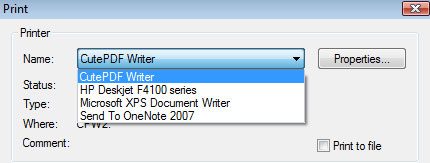
- Then select CutePDF Writer as the Printer to print (DO NOT select “Print to file” option).
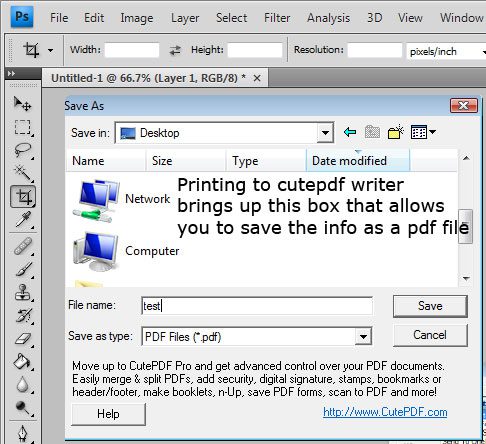
- You will get a Save As dialog box prompted for saving created PDF file.
- Select a folder to Save in and enter a File name, then click on Save.
- Open that folder to find your PDF file.




The last time i used it, links in the pdf weren’t clickable at all. Does this version have it. I’d rather stick to Open Office
it works fine for me.
.-= pini´s last undefined ..If you register your site for free at =-.
I’ve been using this for a while. I mainly use it on my laptop which isnt connected to a printer. I can then print to a PDF and if I need to, I can print the PDF out later on if I need to.
.-= Lincolnshire Web Design´s last blog ..SEO In Lincolnshire =-.
this is great . i will keep use of it.thanks .keep sharing.
This is definitely a tool I have been using for some time. But PDF 995 works just as well and it’s Free!
PDF 995 works better and it’s free.
PDF 995 is free and works well. I will try this to see if its easier. Thanks
virtualization solutions
I’ve tried once CutePDF before and I think it does a pretty good job. You can conclude that it is one of the best.
Another Great post. Best wishes with your blog.
I like this blog and have bookmarked it. I will check back to read more properly.