
While writing posts for this blog, we usually have to copy logos, application screenshots, etc. I used to press the Prnt Scrn button, paste the screenshot in Photoshop and then crop it to the required area. There is an easier way to take screenshots in Vista without the need for any additional software. This utility is called the Vista Snipping Tool.
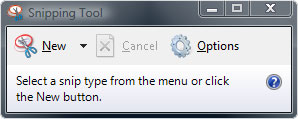
What is the Vista Snipping Tool ?
You can use Snipping Tool to capture a screen shot, or snip, of any object on your screen, and then annotate, save, or share the image. Simply use a mouse or tablet pen to capture any of the following types of snips:
- Free-form Snip. Draw an irregular line, such as a circle or a triangle, around an object.
- Rectangular Snip. Draw a precise line by dragging the cursor around an object to form a rectangle.
- Window Snip. Select a window, such as a browser window or dialog box, that you want to capture.
- Full-screen Snip. Capture the entire screen when you select this type of snip.
After you capture a snip, it’s automatically copied to the mark-up window, where you can annotate, save, or share the snip.
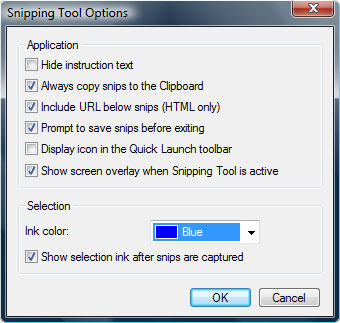
Where can I find the Vista Snipping Tool ?
The Vista Snipping Tool can be found under Start > Programs > Accessories > Vista Snipping Tool
If you have Vista Home Basic, follow these steps to activate the tool. Open Control Panel >> Program and Features. Click Turn Windows features on or off. Click Continue when prompted by User Account Control. Scroll through the list of features, check the box next to Tablet PC Optional Components, and click OK.
AskTheAdmin has more tips on how to use the Vista Snipping Tool. Visit their article about it here.




Believe it or not I still have no experience with Vista
Hi..
I got really excited wen i read this article of urs..
But I was disappointed to not find the Tablet PC optional components in that list.. any idea as y it did not show..?
Oh n i have Vista Home Basic OS if it was so obvious..
what optional components for tablet PC ? I didnt understand your question.
If you have Vista Home Basic, follow these steps to activate the tool. Open Control Panel >> Program and Features. Click Turn Windows features on or off. Click Continue when prompted by User Account Control. Scroll through the list of features, check the box next to “Tablet PC Optional Components”, and click OK.
im talking abt the one within the quotes.. I couldnt find it on my laptop..
Ah now I understood your question… and thanks for adding useful info to this post
well now that u have understood my question, do u have solution for me?
lil busy travelling atm, will get back to you from India