
Every time I start windows the NumLock is always off. Since I usually set a number for my Windows password, its quite irritating to press the NumLock every time. So, today I will tell you how to set the status by editing your registry.
Please make sure you make a backup of your registry before editing it.
- Click Start, then click Run
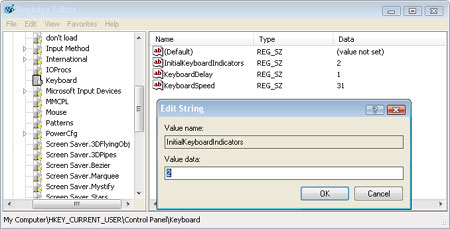
- Open HKEY_CURRENT_USER\Control Panel\Keyboard
- Select the String InitialKeyboardIndicators
- Change the string value to the desired value as shown in the table below
| String Value | Effect |
| 0 | All Keys Off |
| 1 | Caps Lock On |
| 2 | Num Lock On |
| 3 | Caps Lock & Num Lock On |
| 4 | Scroll Lock On |
| 5 | Caps Lock & Scroll Lock On |
| 6 | Num Lock & Scroll Lock On |
| 7 | All Keys On |




you can also set the status of numlock at boot in the bios.
It look like a new but it is old bubsy challenge
Nice post, thanks for all the useful info
nice post, thanks for all the info
Opened my RegEdit a.s.f., but my InitialKeyboardIndicators
contains 10 ciffers ;-) in Win 7….